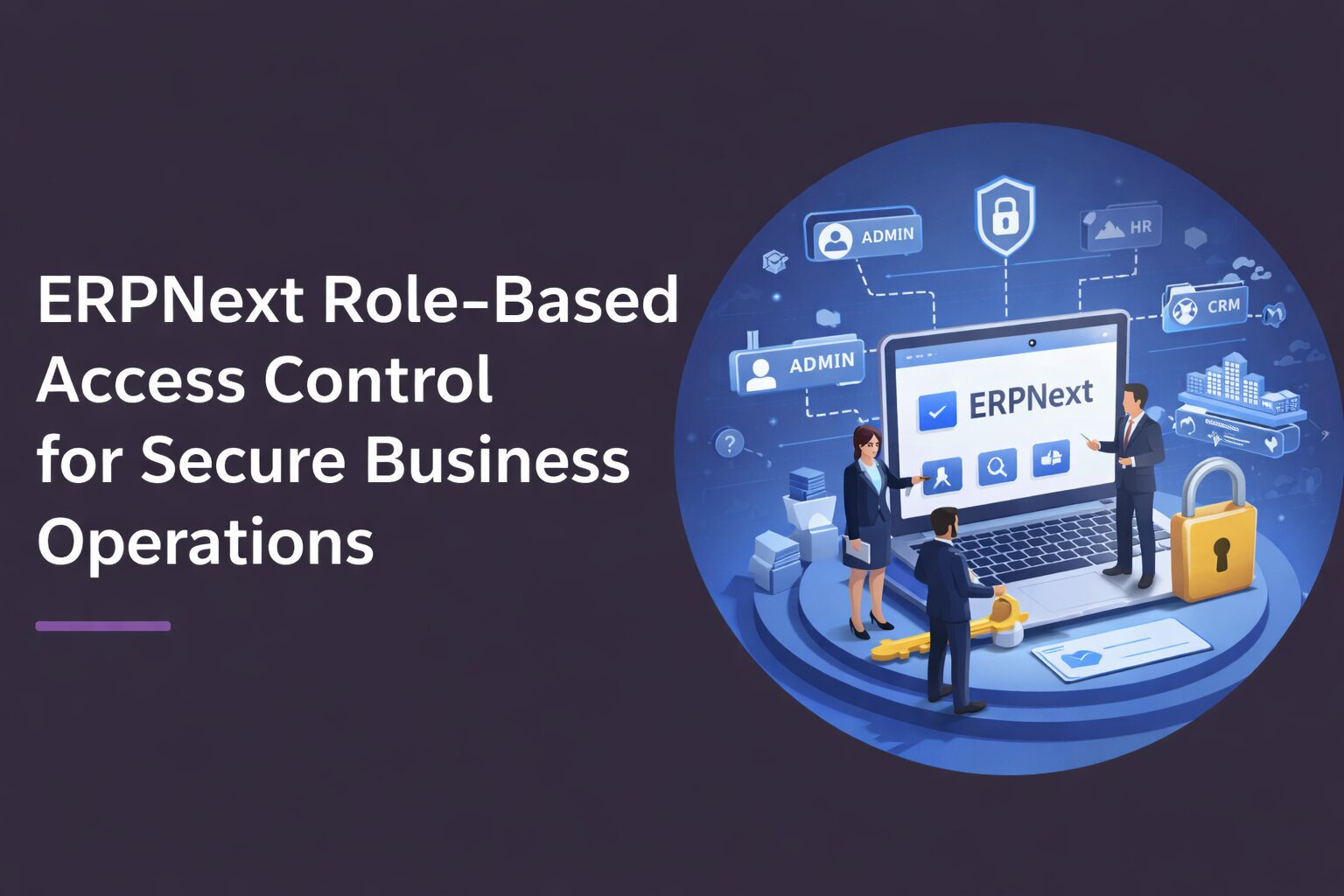
Security is no longer a “checkbox” in enterprise software; it’s a foundation for trust and operational resilience. When managing diverse business functions in a single ERP platform like ERPNext, businesses must balance usability with robust safeguards to prevent unauthorized access and misuse of sensitive data. This is where ERPNext role based access control (RBAC) becomes indispensable.
Whether you’re a compliance officer evaluating risk or an IT lead implementing permissions, understanding how to configure access control in ERPNext is essential. This article outlines practical steps, real-world examples, and best practices to establish a secure and scalable permission model that fits your business.
Why Access Control Matters in ERPNext
Enterprise Resource Planning (ERP) systems unify finance, supply chain, HR, and operations into a shared platform. While this integration drives efficiency, it also increases the impact of a misconfigured role or excessive privileges.
Imagine a curious intern accessing payroll data or a sales rep modifying inventory records. Without fine-grained restrictions, users may inadvertently alter critical records or gain insights beyond their job scope creating compliance headaches and operational risk.
In ERPNext, access control isn’t an afterthought. The platform includes a comprehensive ERPNext user roles and permissions model that empowers administrators to enforce least-privilege access across modules.
Understanding ERPNext Role-Based Access Control
At its core, ERPNext role based access control allows organizations to define:
- Roles — sets of permissions like “Sales Manager” or “Accounts Payable”
- Permissions — specific capabilities such as Create, Read, Write, Delete
- Users — individuals mapped to roles
This separation ensures that access rights are determined by business function, not arbitrary settings. Once this model is understood, businesses can configure ERPNext to reflect their unique operational structure.
Also Read – 10 Reasons Businesses Are Switching from Legacy ERP to ERPNext
Key Components in ERPNext Access Control
1. Roles
Roles represent job functions. For example:
- A Sales User might have access to Sales Orders and Leads.
- An HR Manager can review employee records but not financial transactions.
ERPNext allows creation of custom roles to mirror complex organizational hierarchies.
2. Permissions
Permissions exist at the doctype level (ERPNext’s term for a record type). For each role, you can assign:
- Read
- Write
- Create
- Delete
- Submit
- Cancel
This makes it possible to say, for example, “A Sales User can view but not delete quotations.”
3. Permission Rules
ERPNext’s permission rules allow conditional access using filters like Company, Department, or Reporting Manager. This enables nuanced control without custom coding.
How to Configure Role Based Access in ERPNext (Step by Step)
Configuring ERPNext correctly requires planning and precision. Below is a step-by-step ERPNext RBAC setup guide that administrators can follow during implementation:
Step 1: Define Business Roles
Start by listing core roles in your organization. For example:
- Sales Executive
- Inventory Manager
- Finance Analyst
- HR Supervisor
This exercise helps map ERPNext roles to real responsibilities.
Step 2: Create Roles in ERPNext
- Navigate to Users and Permissions > Role
- Click New Role
- Assign a descriptive name
- Save
Each role should be self-explanatory to reduce future confusion.
Step 3: Assign Permissions
Permissions are configured per module or doctype:
- Go to Role Permissions Manager
- Select the Role
- Choose the relevant DocType (e.g., Sales Order)
- Check appropriate boxes (Read, Write, Create, Submit)
- Use filters to restrict access by Company or other fields
For example:
- Inventory Manager: Full rights on Stock modules
- Sales Executive: Read and Submit on Sales Orders
Step 4: Map Users to Roles
Once roles and permissions are created:
- Navigate to User
- Select a user account
- Assign appropriate roles
- Save
ERPNext will automatically enforce permissions based on this mapping.
Step 5: Validate and Test
Create test user accounts with limited roles to simulate real-world access. This helps catch permission gaps before production.
For instance, a test “Sales Guest” user should not have access to financial ledgers. If they do, adjust permission rules accordingly.
Also Read – ERPNext Implementation Checklist for First-Time ERP Buyers
Best Practices for ERPNext Access Control
Establish Least-Privilege by Default
Only grant the minimum access required to complete a job. This reduces risk and aligns with compliance frameworks like SOX or GDPR.
Document Your Permission Model
Maintain an internal document that explains:
- What each role means
- Which permissions are granted
- Why specific rules exist
This simplifies audits and onboarding of new users.
Include Workflow Rules
ERPNext allows workflows that enforce approval steps. Use these in conjunction with RBAC to ensure data integrity. For example, a Purchase Order cannot be Approved without Manager review.
Review Roles Regularly
Permissions should be reviewed at least quarterly, especially after organizational changes.
Real-World Insight: Access Control at Scale
One mid-sized manufacturing firm implemented ERPNext across global branches. Initially, every user had broad permissions, resulting in data clutter and compliance flags during audits.
After restructuring with ERPNext role based access control:
- Unauthorized edits dropped by 80%
- Average data errors reduced by 35%
- Audit readiness improved dramatically
The key change was aligning ERP roles with real job responsibilities and enforcing permission rules consistently.
Advanced Access Control: Conditional Restrictions
ERPNext allows you to set field-level restrictions based on criteria like Department, Company, or even Cost Center. For example:
- A Finance Clerk in Europe sees only EU financial data
- A Sales Rep only views leads from their territory
This prevents cross-departmental or cross-region access unless explicitly allowed.
Integrating ERPNext with Business Security Policies
High-security environments often require:
- Multi-factor authentication
- Single Sign-On (SSO)
- Role audit trails
ERPNext supports SSO integrations, making it easier to unify access control with centralized identity providers.
Also Read – 9 Benefits of Choosing ERPNext Over Proprietary ERP Systems
Conclusion: Building Secure Operations with ERPNext
Effective access control is the backbone of secure business operations. With ERPNext role based access control, organizations can precisely define who sees what and who can do what—reducing risk while enabling productivity.
If your business requires tailored permission strategies or advanced security workflows, exploring ERPNext Services such as custom configurations, role audits, or workflow automation can make a significant difference. Whether you’re upgrading existing systems or planning a new deployment, securing access control at the outset saves time and prevents costly fixes later.
To ensure a secure, compliant, and scalable deployment, consider partnering with a team that understands both the business and technical aspects of ERPNext. Hire ERPNext developers who can help design permission models, implement conditional access rules, and optimize your system for long-term resilience.
For broader digital transformation, including tailored feature builds, data integrations, or custom extensions, Custom ERPNext Solutions can help your business extract maximum value from the platform.
Leave a Reply